1. Overview & Context
Lovebox is a physical connected object that lets two people in a long-distance relationship send each other private messages: text or images. When a message arrives, the box wakes from deep sleep, lights up its screen, and waits for the recipient to press a button to acknowledge that they have read it.
My fiancée and I live in different countries and can sometimes go months without seeing each other. Yes, WhatsApp and Snapchat already do this — the real goal was the engineering: design a complete embedded system from scratch, pair it with a small web backend, and solve the hard problems that come with running event-driven logic on constrained hardware.
2. Equipment
Microcontroller — Wemos Lolin32
The core of the box is a Wemos Lolin32, a development board built around the Espressif ESP32 SoC.
The dual-core architecture is fundamental to the firmware design (see Section 3).
Display — ILI9341 TFT 3.2” 240×320
A 3.2-inch TFT LCD driven by the ILI9341 controller over SPI at 40 MHz.
- Resolution: 240 × 320 pixels, 16-bit color (RGB565)
- Library: TFT_eSPI (bodmer)
- Image decoding: TJpg_Decoder (JPEG) + PNGdec (PNG)
The display is the only output to the user. All UI screens — pairing codes, messages, animations — are rendered directly onto this panel.
Button
A single tactile button on GPIO 15 (active-low, internal pull-up). It serves three purposes depending on context:
- Wake from deep sleep via EXT0 hardware interrupt
- Short press → acknowledge a displayed message
- 5-second hold → trigger factory reset flow
Wiring summary
| Signal | ESP32 GPIO |
|---|---|
| TFT MOSI | 23 |
| TFT SCLK | 18 |
| TFT CS | 5 |
| TFT DC | 2 |
| TFT RST | 4 |
| TFT Backlight | 22 |
| Button | 15 |
3. Software Architecture
The project has three distinct software layers.
3.1 Server — AdonisJS + Vue 3
The backend is a standard AdonisJS v6 application (Node.js) with a SQLite database and a Vue 3 single-page application served as a static bundle.
Data model:
users ──< lovers >── users      (bidirectional relationship with status: pending/accepted)
users ──< boxes                 (a user links their physical box)
users ──< messages >── boxes    (messages sent from a user to a box)
API surface:
| Group | Endpoint | Description |
|---|---|---|
| Auth | POST /api/login, /api/register | Session auth |
| Lovers | GET/POST /api/lovers | Request, accept, reject |
| Compose | GET /api/compose/:loverId | Check if lover has a box |
| Messages | POST /api/messages/send | Send text |
| Messages | POST /api/messages/send-image | Send image (up to 300 KB) |
| Messages | GET /api/history | Message history with read receipts |
| Box (ESP32) | POST /api/boxes/register | First-time pairing |
| Box (ESP32) | POST /api/boxes/heartbeat | Liveness check, box-token auth |
| Box (ESP32) | GET /api/messages/pending | Fetch the next queued message |
| Box (ESP32) | POST /api/messages/:id/ack | Mark message as read |
Messages go through three states: queued → displayed → acked. The displayed_at and acked_at timestamps let the sender see exactly when their message was seen.
Frontend — Vue 3 SPA:
A minimal mobile-first interface with four pages:
- Login / Register
- Lovers — send/accept relationship requests
- Compose — write a text or upload an image, with a live 240×320 pixel preview scaled to the exact box display size
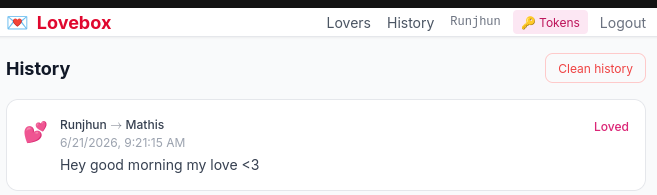
- History — full message log with status badges (Queued ⏳ / Seen 👁️ / Loved 💕)
3.2 Firmware — The interesting part
The problem with blocking code
The naive approach to embedded firmware is linear and synchronous:
connect WiFi → fetch message → show message → wait for button press → sleepDuring an HTTP request (up to 8 seconds), nothing else runs. If the user held the button during that window, the press was invisible. The 5-second factory-reset hold could not be detected reliably.
The previous version of the firmware had a workaround (g_holdStartMs) that partially handled this, but only for the first press after boot. Any press during a subsequent network call was lost.
The solution: true parallelism with FreeRTOS
The ESP32 has two independent CPU cores. FreeRTOS — the real-time OS already embedded in the Arduino framework — lets us pin tasks to specific cores and communicate between them safely.
The firmware runs two tasks in parallel:
- WiFi connect
- HTTP requests (up to 8s)
- Display rendering
- Reads button events from queue
queue (8)
- Polls GPIO 15 every 10ms
- Sends BTN_SHORT_PRESS on release
- Sends BTN_LONG_HOLD after 5s
The button task runs every 10 ms no matter what Core 0 is doing. While mainTask is blocked inside an 8-second HTTP call, buttonTask has sampled the pin 800 times and will have enqueued BTN_LONG_HOLD the instant the 5-second threshold was crossed.
Key implementation details:
vTaskDelay(pdMS_TO_TICKS(10))genuinely yields the CPU — it does not burn cycles likedelay().- Only one
BTN_LONG_HOLDis sent per continuous hold (holdReportedflag prevents duplicates). BTN_SHORT_PRESSis sent on release, so both events cannot fire for the same physical press.- Queue capacity is 8 — presses during a busy HTTP call cannot be lost.
- Boot-time hold inheritance: if the button is already pressed at boot,
setup()seedsg_bootHoldSeedMsbefore creating the task so that time spent initializing counts toward the 5-second threshold.
How states wait for the button (no busy-polling):
ButtonEvent evt;
if (xQueueReceive(g_buttonEvents, &evt, pdMS_TO_TICKS(MSG_TIMEOUT_MS)) == pdTRUE) {
  // handle evt
}
// xQueueReceive blocks mainTask (consuming zero CPU) until event or timeout.
// buttonTask on Core 1 keeps running and delivers events immediately.
State machine
mainTask is a while(true) loop over a switch on the current state. Each state is a pure function that returns the next state. There are 11 states:
                    ┌──────────────────┐
                    │  ST_WIFI_CONNECT  │
                    └────────┬─────────┘
                             │ always
                    ┌────────▼─────────┐
                    │  ST_CHECK_BOX_ID  │
                    └──┬───────────┬───┘
               empty   │           │ has ID
                       │           │
          ┌────────────▼┐    ┌─────▼──────────┐
          │ ST_WAIT_LINK │    │  ST_HEARTBEAT   │
          └──────┬───────┘    └──┬────────┬────┘
       registered│           OK  │        │ fail
                 │               │        ▼
           ST_SLEEP◄             │   ST_BOX_REMOVED ──long hold──► restart
                                 │        │ timeout
                    pending ◄────┘        ▼
                    │                  ST_SLEEP
          ┌─────────▼────────┐
          │ ST_RESUME_PENDING │
          └─────────┬─────────┘
                    │ (also from ST_FETCH_MESSAGE when msg found)
          ┌─────────▼────────┐
          │   ST_WAIT_ACK    │◄──────────────────────┐
          └──┬───────┬────┬──┘                       │
      timeout│ short │    │ long hold                 │
             │ press │    │                           │
             ▼       │    ▼                           │
          ST_SLEEP   │  ST_RESET_CONFIRM ──confirm──► restart
                     │       │ timeout / cancel
                     │       ▼
                     │   ST_SLEEP
                     ▼
             ST_ACK_MESSAGE
                     │ next available
                     ├──────────────────────────────►┘ (ST_FETCH_MESSAGE)
                     │ no more
                     ▼
                  ST_SLEEP
Button-wake with nothing queued:
ST_FETCH_MESSAGE ──no message + button wake──► ST_NO_MESSAGES ──► ST_SLEEP
                                                       │ long hold
                                                       ▼
                                               ST_RESET_CONFIRM
Deep sleep
Between message polls the device enters ESP32 deep sleep (~10 µA). It wakes either on a timer (30-second interval) or via EXT0 hardware interrupt when the button is pressed. FreeRTOS tasks do not survive deep sleep — setup() recreates them fresh each wake. RTC memory (RTC_DATA_ATTR) persists the box ID and any unacknowledged message across sleeps.
Before sleeping, if the button is currently held, the firmware waits for release to avoid an immediate re-wake via EXT0.
Task configuration
| Task | Core | Priority | Stack |
|---|---|---|---|
buttonTask | 1 (APP) | 2 | 2 048 B |
mainTask | 0 (PRO) | 1 | 8 192 B |
Arduino loop | 1 (APP) | 1 | suspended with portMAX_DELAY |
buttonTask has higher priority than mainTask so it is never starved. mainTask needs 8 KB because WiFiManager, ArduinoJson, and the JPEG/PNG decode chain all live on its stack.
4. What We Could Do More
The project works end-to-end but is not production-ready. Areas for improvement:
Firmware / display
- Richer rendering: gradient backgrounds, anti-aliased fonts, animated hearts instead of static pixel drawings
- Support for animated GIFs
- Brightness control (PWM on the backlight pin)
- The display refresh rate could be improved — currently full-screen redraws are visible as a flash
Backend
- Replace the LAN IP in
config.hwith a configurable domain + HTTPS (let’s encrypt) - Push notifications so the user knows when a message was read without polling
- User profile pictures
- OTA (over-the-air) firmware update endpoint
Frontend / UX
- Notifications in the browser when the box reads a message
- Partner management (currently only one lover per account is practical)
Infrastructure
- Docker Compose for easy self-hosting
- Not tested under load, no rate limiting, no email verification
5. Feature Descriptions & Demos
5.1 First boot — Wi-Fi setup
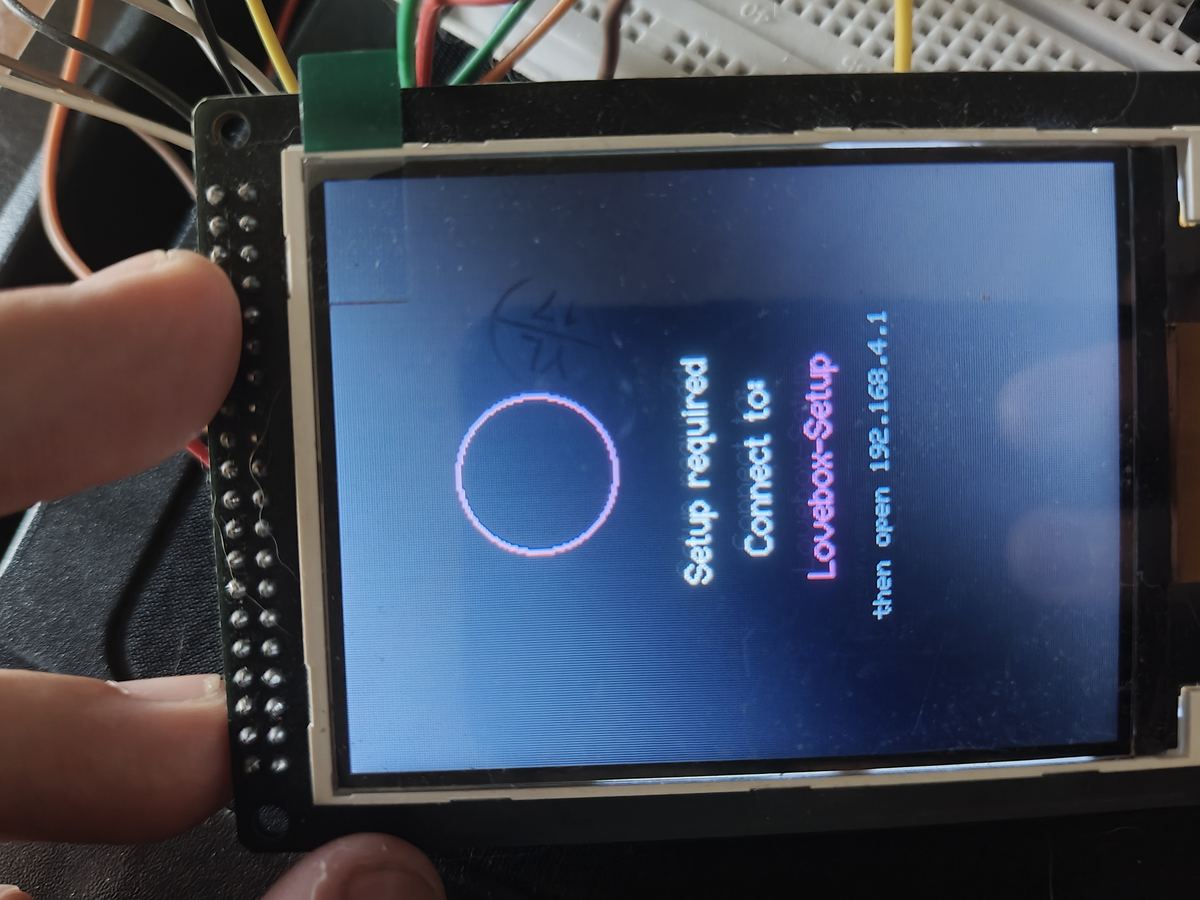
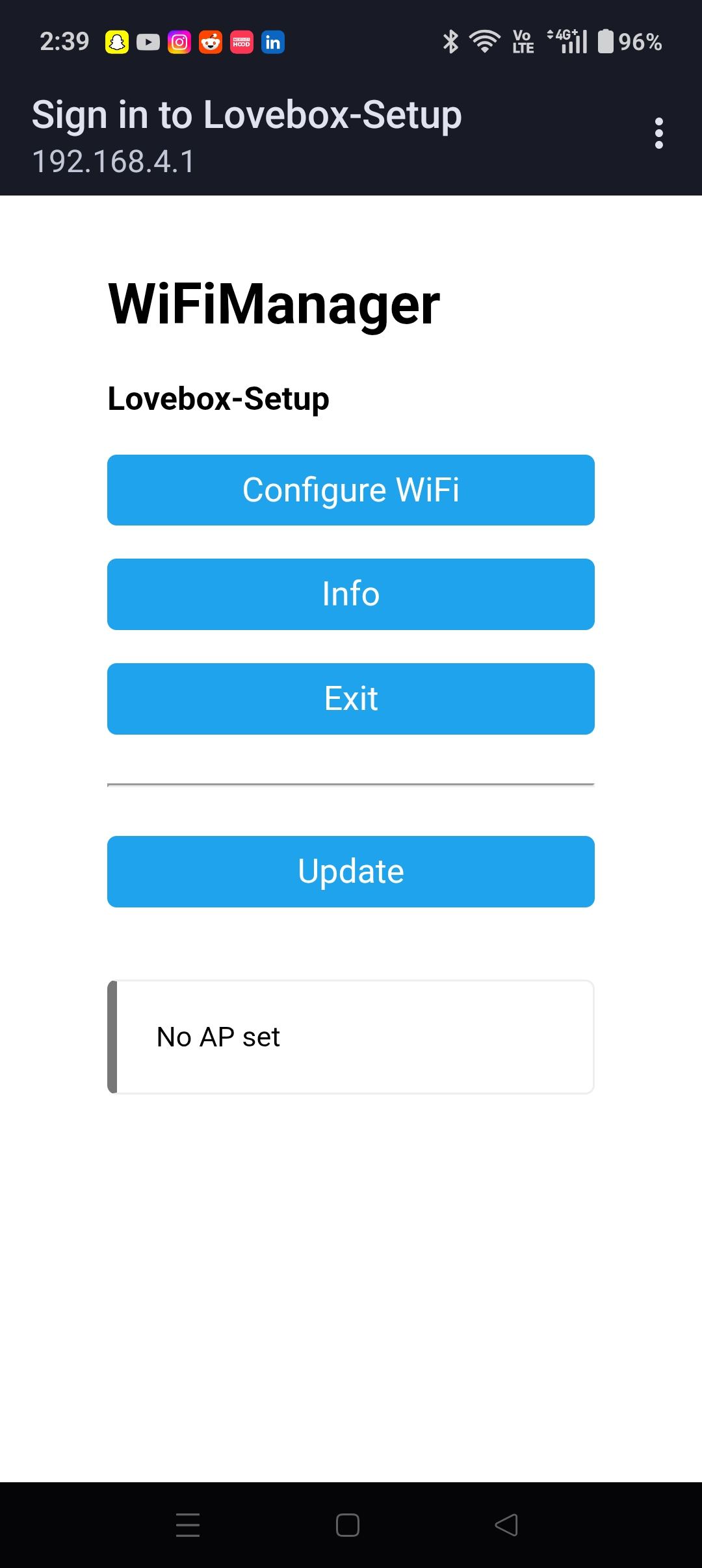
On first power-on with no Wi-Fi credentials, the box opens a Wi-Fi access point called Lovebox-Setup. The display shows the AP name and an instruction. The user connects to it from their phone and enters home Wi-Fi credentials through a captive portal. From this point on credentials are stored in flash and the device connects automatically.
The box display instructs the user to connect to the AP and open the captive portal address:
On their phone, the user opens the WiFiManager captive portal to enter their home Wi-Fi credentials:
5.2 Pairing — linking the box to an account
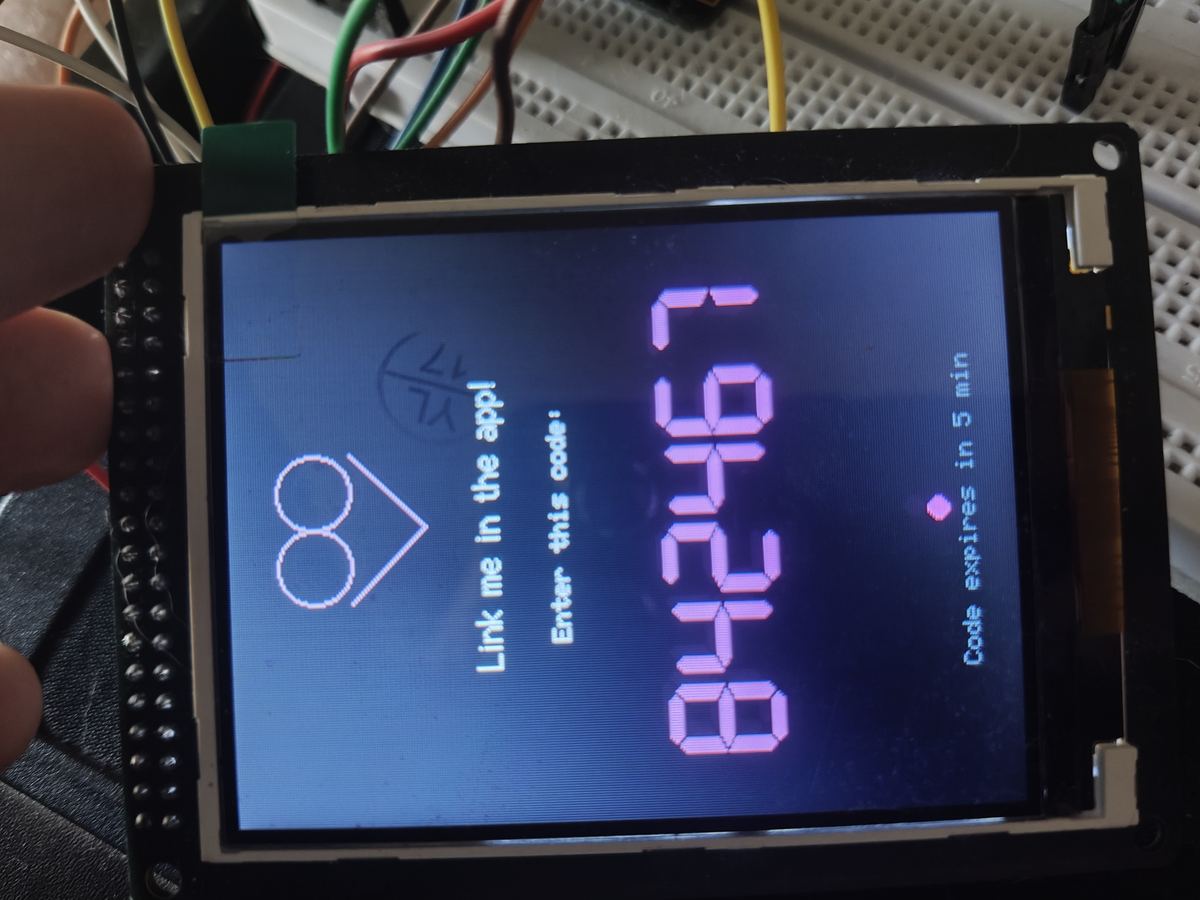
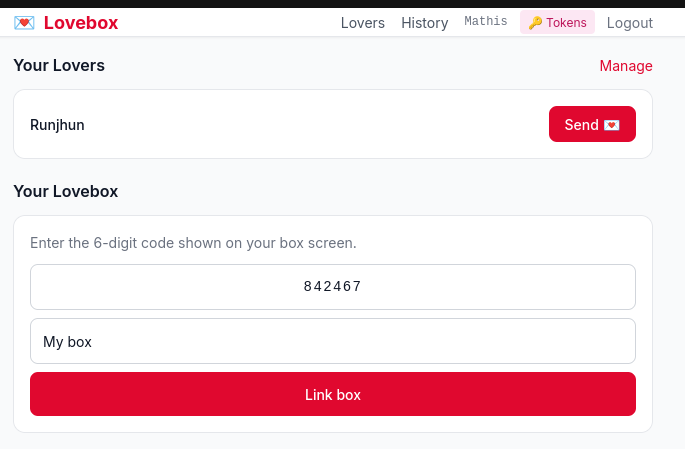
Once online, the box generates a random 6-digit code and displays it alongside the server URL. The user opens the web app, navigates to the box settings page, enters the code, and the box is permanently linked to their account. The screen confirms registration and the box goes to sleep.
The box generates a 6-digit code and displays it with a 5-minute countdown:
The user enters that code in the web app to link the box to their account:
5.3 Lover request
From the web app, a user searches for their partner’s username and sends a lover request. The partner sees a pending request on their Lovers page and accepts it. From that moment both users can send messages to each other’s boxes.
5.4 Sending a text message
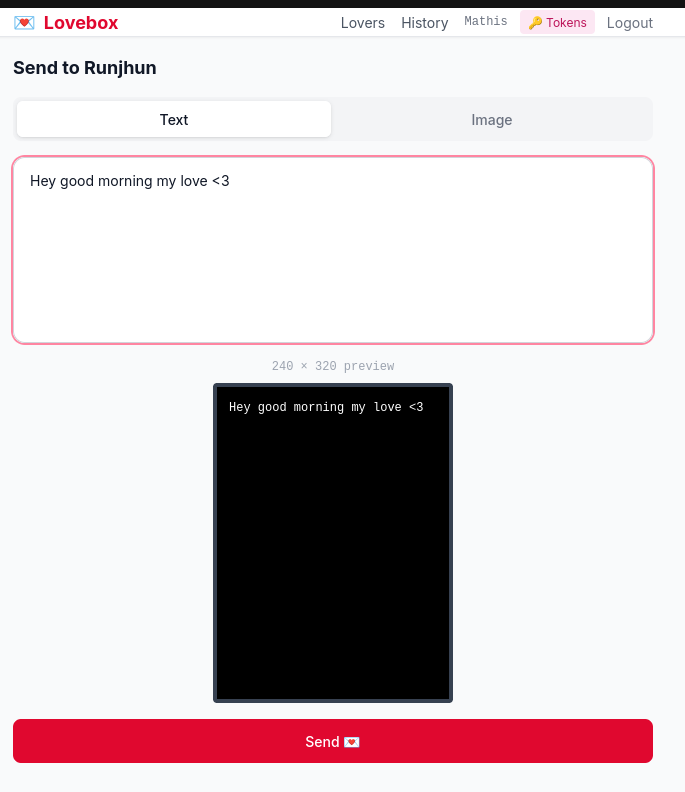
On the Compose page the sender selects their partner, picks the Text tab, types a message (up to 500 characters), and hits Send. The message is stored in the database with status queued.
The compose page includes a live 240×320 pixel preview — the exact size of the box screen — so the sender can see how their text will render on the device before sending.
5.5 Sending an image
Same Compose page, Image tab. The sender picks an image from their device (JPEG, PNG, GIF, WebP, max 300 KB). A preview is shown scaled to 240×320. On send the image is uploaded to the server and stored; the box downloads and decodes it when it wakes.
5.6 The box wakes and displays the message
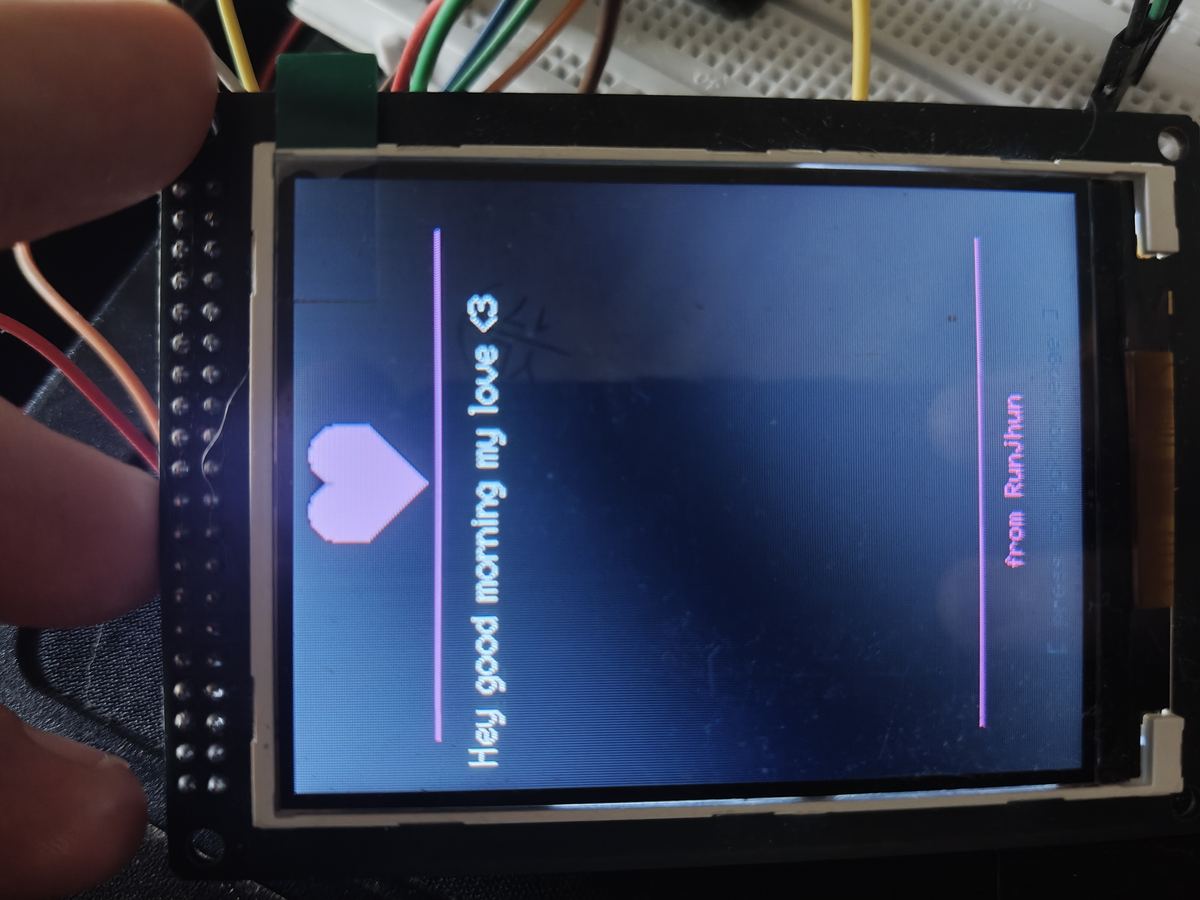
On the next wake cycle (timer or button press) the box sends a heartbeat, then polls GET /api/messages/pending. If a message is waiting, the display lights up:
- Text message: white monospace text on black background, sender name at the bottom
- Image message: JPEG or PNG decoded directly into the TFT frame buffer, full-screen
The message stays on screen until the user presses the button or a 5-minute timeout elapses.
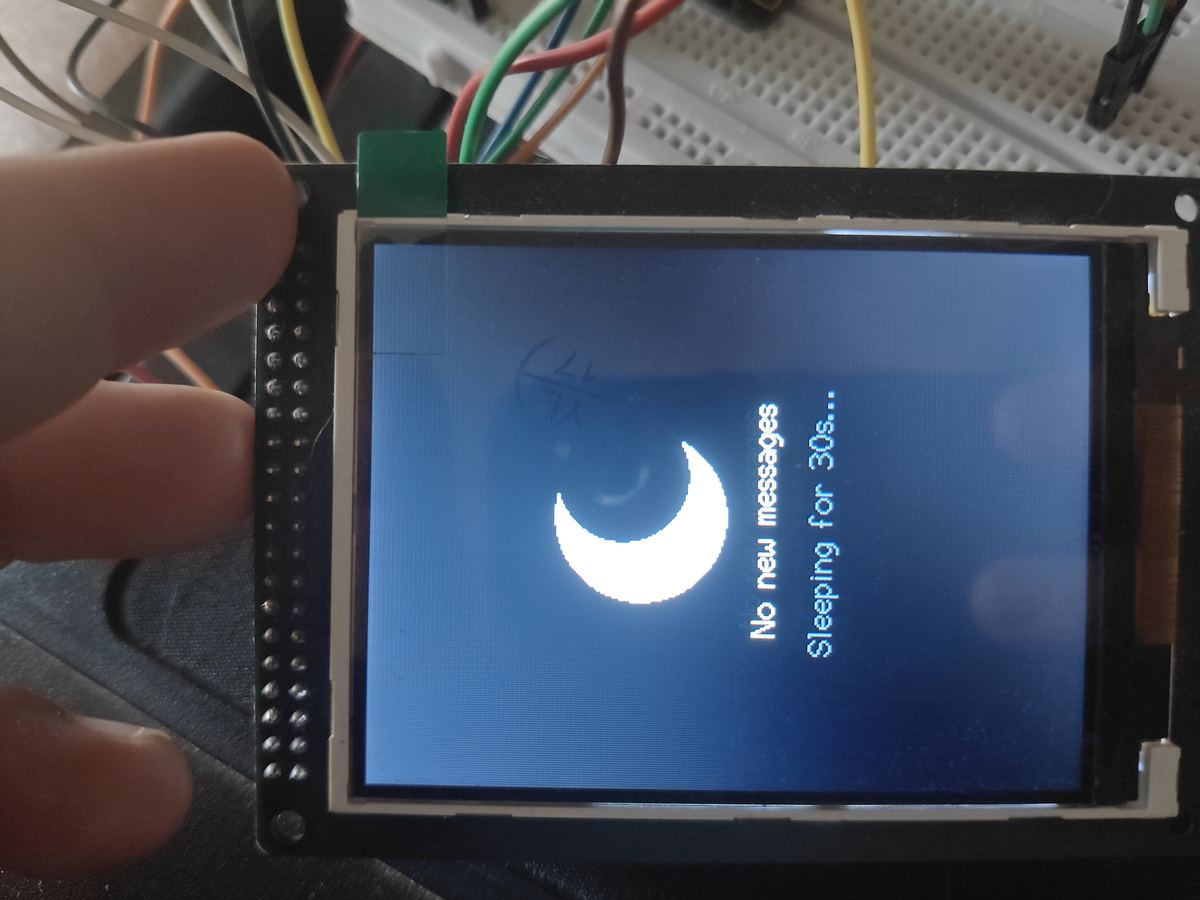
When there is no pending message on a button-wake, the box shows a “no new messages” screen before going back to sleep:
5.7 Acknowledgement
The user presses the button. The firmware runs a short animation (heart pulse), sends POST /api/messages/:id/ack, and checks if more messages are queued. If yes, the next message is fetched and shown immediately. If no, the box goes back to sleep.
5.8 Message history and read receipts
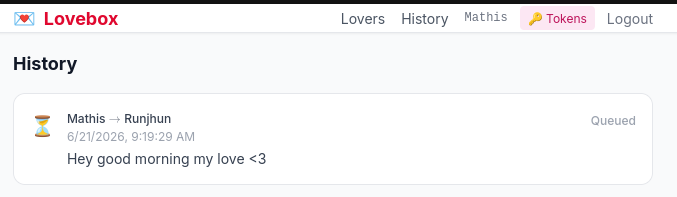
The History page on the web app shows the last 50 messages with three status badges:
The displayed_at and acked_at timestamps are shown so the sender knows exactly when their message was seen.
5.9 Factory reset
Holding the button for 5 seconds from any state triggers the reset confirmation screen. The device waits for the button to be fully released, then asks for a fresh short press to confirm. On confirmation it calls POST /api/boxes/dissociate, clears its stored box ID, and restarts into the pairing flow. A 15-second timeout on the confirmation screen cancels the operation.
5.10 Box removed / heartbeat failure
If the heartbeat returns a failure (the box was deleted from the server side), the box displays a warning message and waits up to 60 seconds for a long hold to clear its local pairing data and restart cleanly.